PDF to HTML: control how the export actually looks
PDF to HTML sounds like a single button, but the useful part is knowing what you are trading. Here you are not extracting an editable Word-style document; you are packing the visual of each page into one HTML file you can open offline, email as an attachment, or park on a static host without juggling separate image files. That is a narrow job, and it is honest about limits: text will not behave like a reflowable article, yet the layout you see is the layout you ship.
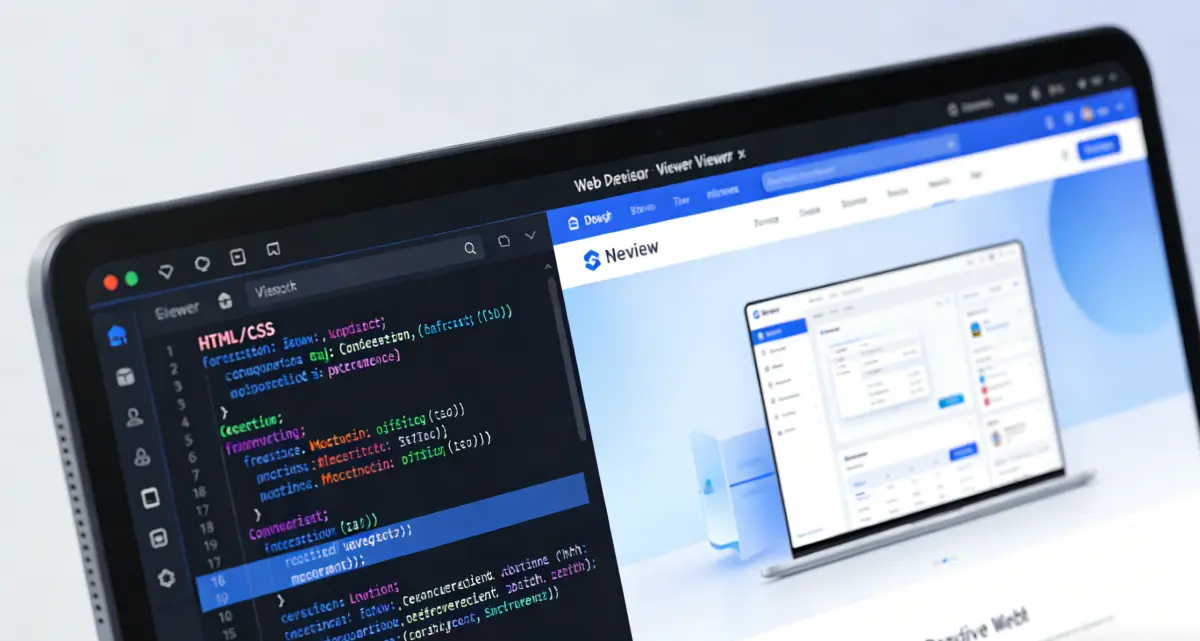
When the brief is “one attachment, same look as the PDF”
We render pages with Mozilla pdf.js in your browser, draw them to a canvas, then embed the pixels as data URLs. If you have tried a generic pdf file to html converter that dumps a wall of markup, this is the opposite instinct: fewer surprises, more control over weight. A pdf to html conversion here is closer to “print to pixels, then wrap,” which keeps footers, diagrams, and odd fonts looking like the PDF for readers who mainly need to see the page, not edit it.
Because everything stays local, you can iterate on a sensitive deck without uploading it. The tradeoff is file size: Base64 grows quickly, so you will want to cap resolution or page count for long documents. When you are ready, download a single .html, or switch the output view to copy raw data URLs for a CMS pipeline that prefers assets split out later.
Jump to the converterRaster settings you can feel
Open the export panel and change render scale, max width, page limit, and image format. Re-run when the preview looks too soft or the HTML feels heavy. You are not stuck with the first pass.
HTML beside the page you are judging
The right column shows the document or the raw src view while you flip pages on the left. That makes it obvious when a tweak helped, instead of downloading blind after every small change.
Per-page polish without a second app
Set width, height, alt text, and optional links per page, then apply the same pattern across the deck if you want consistency. It is the sort of cleanup people usually do in an editor after export—we folded it into the same screen.
Why this PDF file to HTML converter keeps you in the loop
Most tools stop at upload and download. We keep the pdf to html conversion visible so you can tune output instead of guessing.

Visual controls instead of a black box
The pain usually shows up on the first download: a soft first page, a missing spread, or a Base64 blob you would not dare attach. Here the raster you are arguing about stays on the left, while the right column shows the HTML—or the bare src lines—that will actually leave your machine when you press copy. Tweak render scale, max width, or how many pages embed and you watch the thumbnail respond before you fetch another file. Switch to src-only when your CMS wants naked data URLs; keep the full document wrapper when policy asks for one tidy attachment. That layout mirrors how people debug exports in the wild—compare what shipped to what they thought they shipped—yet the fastest converters still teach upload, convert, disappear. Long reports get a sane page cap; PNG-heavy scans can move to WebP or JPEG; alignment nudges help the stack read on a phone. None of that needs a second install; it sits beside the preview. If you still want another pair of eyes before you hit send, Preview HTML opens the bundle in the homepage playground—optional, but uncommon among one-click dumps.
- See HTML while you tune the PDF
- Re-render after changing scale or format
- No upload to our servers
- Preview HTML in the playground
How to convert HTML to PDF
If you meant the opposite workflow
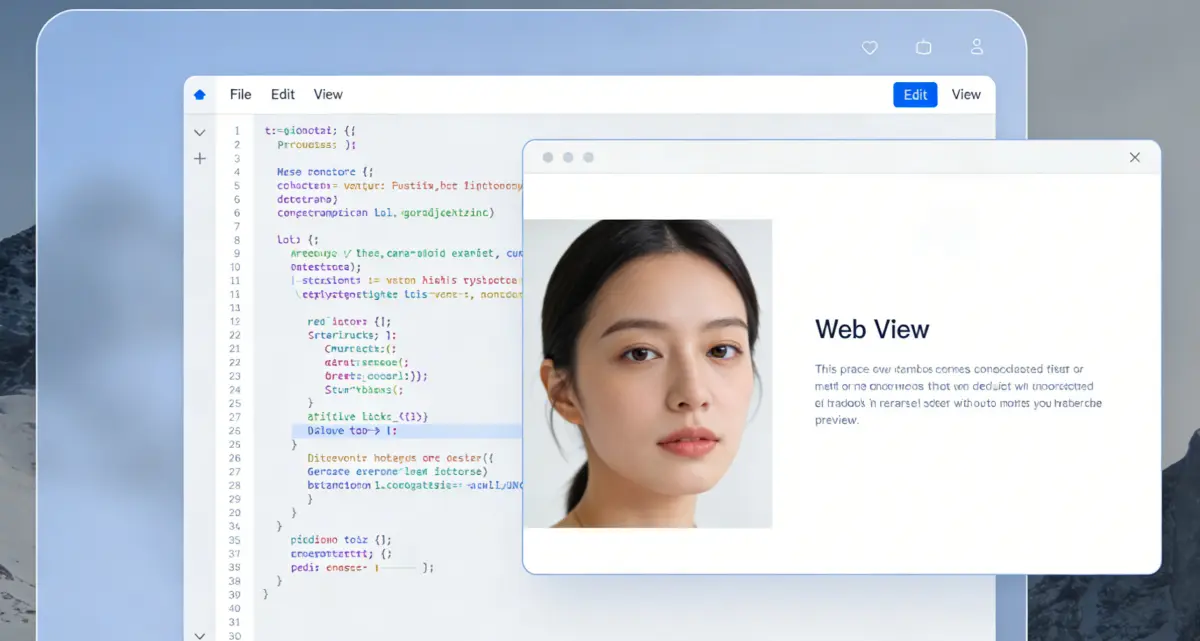
Searchers often land on the wrong page name. When you need markup turned into a fixed-layout file, use our HTML to PDF tool at /html-to-pdf: paste or import HTML, add CSS if you like, watch the preview, then export. That path answers layout freezing and print margins; this PDF to HTML page answers “give me one portable file that still looks like the PDF pages.”

Stay on this page when the source of truth is already a PDF
Upload the PDF, pick raster settings, then skim pages with the arrows. Adjust per-page width or alt text where accessibility matters, apply to all pages if you want a uniform block, and only then copy or download the HTML.
Preview before you share
Use Preview HTML to open the bundle in the playground when you want a second opinion on spacing or links. If the tab slows down, lower max pages or resolution first—that is normal for big canvases.
PDF to HTML: quick answers
Try PDF to HTML
Upload on the left, tune and compare on the right.
PDF to HTML
- pdf.js raster with on-page controls
- HTML output beside the PDF preview
- Per-page width, alt, and links
- Runs locally in the browser
Very large PDFs can be slow; reduce max pages or resolution if the tab feels heavy.

One HTML file, many page images
Handy when you need a single portable snapshot of a PDF without hosting assets.