
What “HTML to PDF” really means
HTML is the structured text browsers use to build a page: headings, links, and embedded styles. It is flexible—the same file can reflow on a phone or a desktop. PDF freezes layout so every reader sees the same pages and typography. People look for html to pdf when they need that bridge: markup in, a portable file out. This guide explains both formats in plain language, then walks you through editing and exporting in one session. The converter uses separate HTML and CSS tabs so you can author styles in CSS and export HTML + CSS to PDF. This page also supports stashing long or multi-file HTML with Save & continue, then merging into one PDF—see the tutorial below.
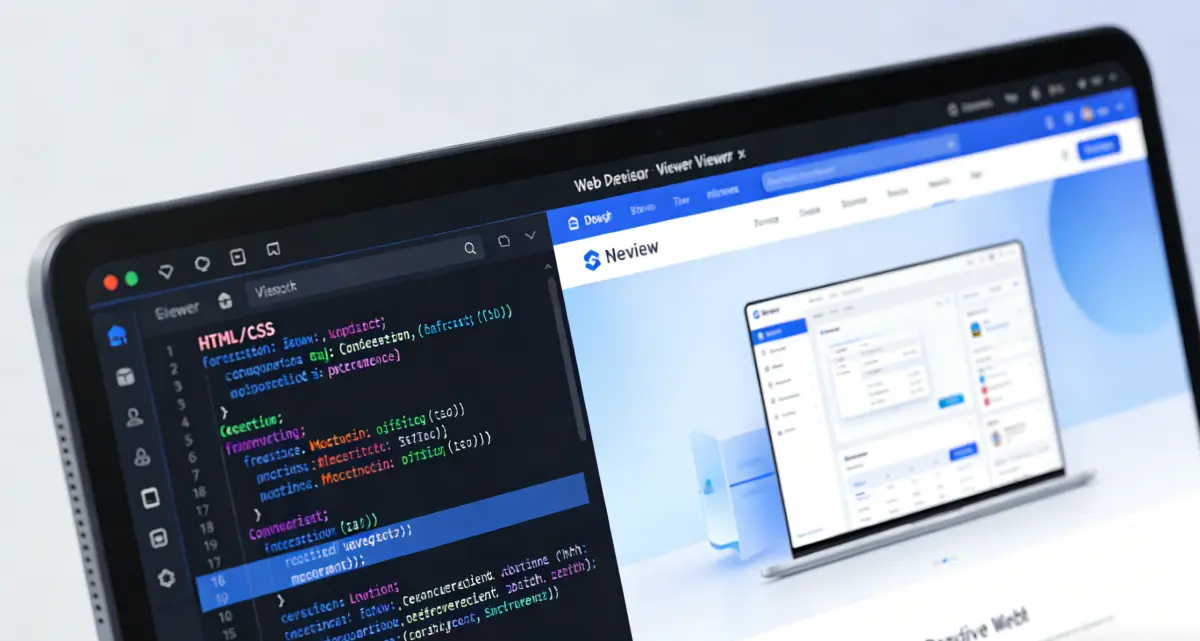
Why you might want html in pdf format instead of only a live page
A live page depends on the browser and network; PDF suits moments when you need the same look later—worksheets, bug snapshots, or attachments. Putting work in html in pdf format fixes margins and page breaks for each reader. Technically, html code to pdf means taking what the preview rendered, then packing it into PDF streams; light tools snapshot the preview, heavy servers run full browsers. Here you edit markup, watch the preview, and export when ready.
Think of HTML as structure, CSS as appearance, and PDF as a frozen snapshot—not infinite scroll. Custom fonts or remote images can shift slightly after export, so preview first. When you need html code to pdf from sources you actually control—paste or file import, not arbitrary URLs—you keep a clear line from input to download. For long HTML or files like chapter1.html and chapter2.html, export each batch, tap Save & continue to stash, swap content, and download once to merge.
Jump to the converterStructure first
Well-nested HTML previews more reliably. Close tags, set charset, and break long lines so the editor matches the preview.
PDF fixes layout
Readers zoom PDFs; they do not reflow like a browser. If you will print, imagine a paper width while you design.
Preview before download
Catch missing images or clipping in the preview pane. To merge multiple HTML files, export and stash each batch before continuing.
How this HTML to PDF tool fits real tasks
When to export, and how to merge long pages or multiple HTML files into one PDF.

From draft markup to a file you can attach
Paste a fragment or a full page, or import .html, .txt, or .json—and add or import .css when you want styles outside the markup. Tweak until the preview matches your intent, then export one PDF for email, print, or archives. Rich third-party sites with many remote assets are harder; self-contained homework, notes, or flyers fit this flow well. The result is a snapshot, not a live site. Need several exports (long content or multiple HTML files)? Use Save & continue to stash each batch; the final download merges everything into one PDF.
- Merge long pages and multiple HTML files
- Save & continue—stash batches, download once
- Import plain-text drafts from .txt or .json
- No account—runs in your browser
How to use this page: a simple loop
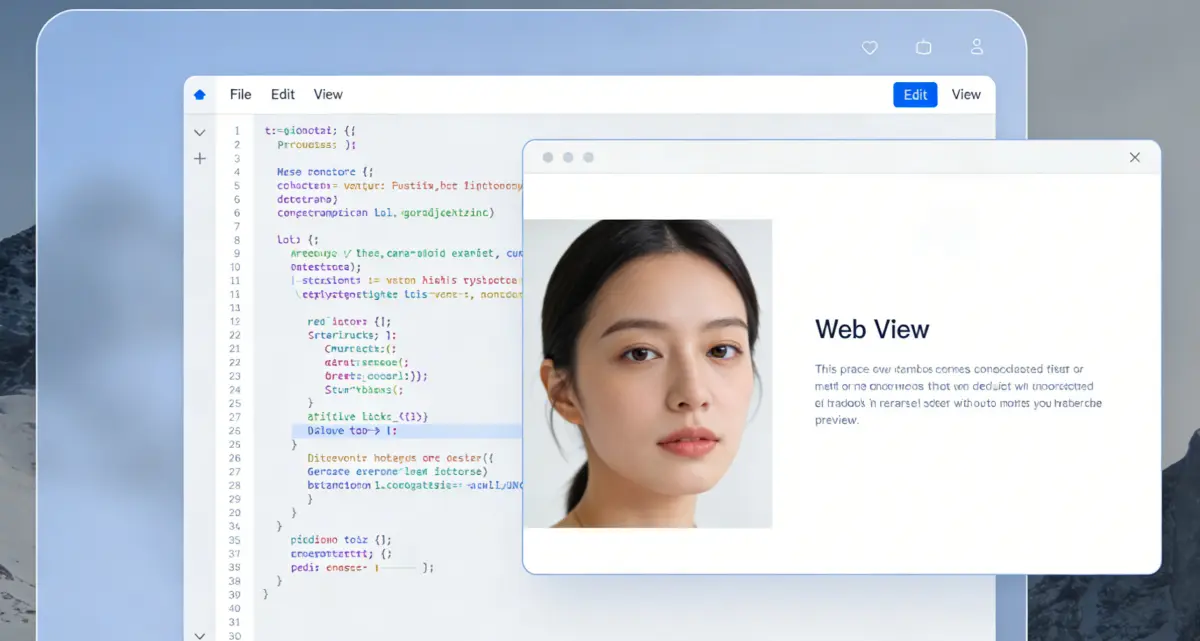
Bring your HTML (and optional CSS) into the editors
Type, paste from an editor, or import a text file; put styles in the CSS tab when you prefer them separate from markup. Body-only fragments are wrapped for preview so you can judge layout before export.

Watch the preview, not just the tags
Scroll the preview. Wide tables or fixed headers may need a small CSS tweak so nothing clips in the PDF.
Convert, review the modal, then download
Run Convert, check the modal preview, then Download. Close and edit again if needed. For this file only, Download is enough.
To merge: tap Save & continue
In the preview modal, tap Save & continue to stash this PDF. Back in the editor, Clear to swap HTML (code only—stash stays) or Import the next file, then Convert again. Repeat until everything is stashed.
Review stash and download merged PDF
When Saved PDF appears at the top, open it to preview stashed pages. Convert the last batch (or download directly) to merge stash + current export. Use Clear saved to reset; Clear does not remove stash.
FAQ: HTML, PDF, and this tool
Ready to try HTML to PDF in your browser?
Write or paste HTML, add CSS in its tab when needed, confirm the preview, export once you are happy—no account required.
HTML to PDF
- Edit HTML/CSS with live preview
- Stash and merge multiple HTML exports
- Save & continue for long pages and multi-file jobs
- Runs locally in the browser
Tip: for print-heavy layouts, test margin and font size in preview before exporting. When merging HTML files, stash each batch before swapping content.

Share or archive static copies
Use PDF when you need the same layout for every reader.