
Convert HTML to image files—without installing anything
If you build pages or email fragments in HTML, you eventually need a still image: a PNG for a wiki, a JPEG for a slide, or a set of shots for a handoff. This page is an HTML to image workflow that runs in your browser. You paste markup (or open a file), check the live preview, then export. The capture uses the same rendering path as our PDF and PPT tools, so what you see in the iframe is what the raster is based on—not a random OS screenshot with the wrong zoom or theme. You stay in control of format, and when the page is long, you can split it into several images instead of one unreadably tall file. You can now edit structure and styles in separate HTML and CSS tabs, then export HTML + CSS to image in one flow.
Why bother with HTML to PNG instead of Print Screen?
Screenshots are fast until they are not: retina scaling, browser chrome, and partial captures make them a poor source of truth. When you need HTML to PNG output for documentation or a design review, you want the full canvas of the document at a predictable size, without your taskbar in the frame. Here you export from the preview surface, pick PNG when you need lossless edges, or switch to a compressed format when file size matters more than perfect pixels.
The tool also fits longer content. A landing page or report might not fit one image cleanly; you can split by equal segments or place manual break lines so each file stays legible. Multi-page exports download as a ZIP so your browser is not fighting you with blocked downloads. Nothing is uploaded to a server for conversion—the heavy work happens locally, which matters when the HTML references internal drafts or sensitive copy.
Open the converterFormats that match how teams actually work
PNG and BMP when you cannot afford banding; JPEG, WebP, or AVIF when you need to email or upload something small; SVG when you want a scalable wrapper (it embeds a PNG snapshot). You choose before export and can change your mind in the preview step.
Splits that respect the layout
Full-page capture when a single image is enough; equal page counts for even slices; manual breaks when you want a cut above a heading or chart. No fixed 16:9 frame forcing your content into a slide box—this is image export, not presentation software.
Honest limits
External fonts and images still load over the network during preview, so blocked assets will look missing in the capture. Very large pages take longer to rasterize. Those are the trade-offs of doing HTML to image in the client—plain, but manageable if you plan for them.
HTML to PNG: sharp stills for specs, tickets, and decks
Raster export is dull until the alternative is a fuzzy grab from a laptop. This flow is built for people who want a file they can attach with a straight face—PNG when clarity matters, other formats when the channel asks for something smaller—and it now includes a dedicated CSS tab.

One pipeline: edit, preview, then export
You are not bouncing between DevTools, a screenshot tool, and an image editor. Write or paste HTML and CSS on the left tabs, watch the preview on the right, then generate images from that same render. If something looks off—fonts, CORS images, a missing stylesheet—you fix the code and run it again. That loop is the point: HTML to PNG (or another format) should be repeatable, not a one-off crop you cannot reproduce tomorrow.
- Preview matches what you export
- Manual or even splits for long pages
- JPEG, PNG, WebP, and more in one place
- No signup; runs locally in the browser
HTML to JPG or JPEG: pick one; both come from the same control
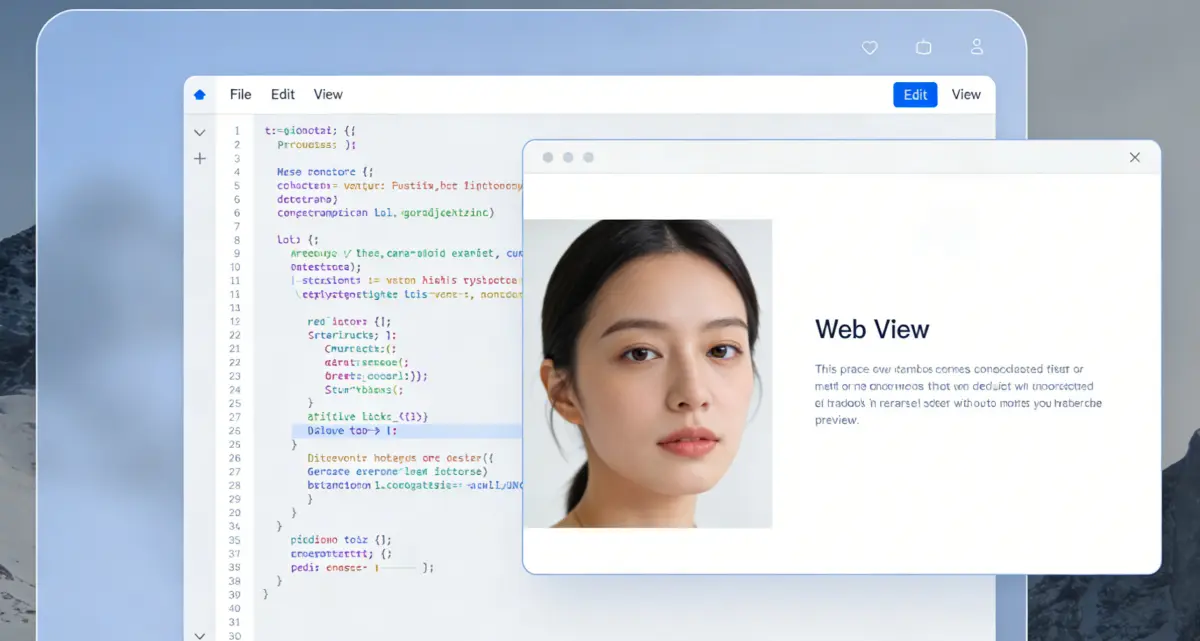
Load your HTML (and optional CSS)
Paste from your editor or import a .html file, and keep styles in the CSS tab when needed. The preview is a normal iframe render, so responsive rules apply the same way they would for a user. Scroll the preview if you need to check lower sections before capture—especially if you will split the page into several images.

Choose how the page becomes images
Full page gives one file for short content. If the document is tall, use equal splits for even chunks or switch to manual breaks and drag lines where you want a new file to start—useful when a section should not be cut mid-table. When you convert HTML to JPG, that choice matters more than with PNG, because JPEG compression can exaggerate seams; place breaks on whitespace when you can.
Select format, preview, download
Pick JPEG (or PNG, WebP, and so on) before you generate, or adjust in the preview dialog if you change your mind. Open the modal, skim the thumbnails, then download a single file or a ZIP. If your browser does not support AVIF encoding, fall back to JPEG or PNG—nothing mysterious, just hardware and engine differences.
Convert HTML to JPG (and everything else): quick answers
HTML to JPEG—or PNG—when you are ready to ship the snapshot
No account, no queue: open the tool, paste your HTML, add CSS in its tab when needed, and walk through preview and export in a few minutes. If the first capture is not right, adjust the code or the split lines and run it again—that is cheaper than redoing a deck of manual screenshots.
HTML to Image
- Live preview for HTML/CSS before raster export
- Split long pages into multiple files
- JPEG, PNG, WebP, AVIF, BMP, or SVG
- Runs in your browser
Default export is PNG; switch to JPEG or another format in the preview dialog if your destination prefers it.

Turn rendered HTML into files people can open anywhere
Still images for tickets, documentation, and slides—without a separate screenshot tool.