
Image to HTML for a single file you can paste, mail, or drop on static hosting
Sometimes you already have the pixels—screenshot, logo, diagram—and what you need next is markup you can hand to a teammate or drop into a repo without standing up an asset URL. Image to HTML, as we use the phrase here, means embedding those pixels as a data URL inside one small HTML document, plus the usual housekeeping: alt text, optional link, layout hints. It is not a CDN replacement for huge galleries; it is a practical jpg to html or png to html style handoff when one image is the whole message.

Bug screenshots, hero PNGs, and one-off diagrams—when the attachment is the whole story
Modern stacks prefer separate assets, yet real work still happens in email templates, LMS snippets, internal wikis, and bug reports where a single self-contained file is easier to audit than a folder of uploads. A jpg to html conversion that only dumps a giant Base64 string is technically correct and still annoying to tune. We bias toward a visible loop: change width, rotation, compression, or brightness and contrast, watch the preview, then glance at the HTML on the right to confirm what will ship.
When you convert image to html here, the browser reads the file locally, draws adjustments on a canvas when needed, and rewrites the src you will paste elsewhere. That keeps credentials off a random server and makes iteration cheap—you are not re-uploading after every small tweak. If the output feels heavy, cap embedded width or switch to WebP or JPEG before you copy; if you need the raw src only, flip the toggle and grab just the data URL line.
Jump to the converterMetadata that travels with the pixels
Set alt text and an optional link wrapper before export so the figure is not just a silent image block when someone opens your file in a screen reader.
Raster controls you can see
Rotate, nudge brightness or contrast, and re-encode with a max width and quality target. Those choices bake into the embedded image, not a pile of CSS filters you forget to copy.
HTML beside the picture
The output column tracks the same pass as the preview, so you are not guessing what changed after you clicked Apply.
A calmer take on image to HTML than upload-and-pray sites
Competitors often stop at a single convert button. We keep compression and layout next to the markup you will actually paste.

Visual tuning instead of a mystery string
A valid data URL is still the wrong deliverable when the asset is twice the width your template allows or a night-mode screenshot needs a lift before it lands in QA. Here the bitmap you are negotiating stays on the left; the right column tracks the same pass as either the wrapped document or the naked src line you will paste into a ticket. Open resize and encode, set max width in the file, quality, and output format, hit Apply, and both panes move together—no guessing which knob actually shipped. Brightness and contrast bake into pixels for export, which beats bolting on forgotten CSS filters after the fact. Alignment, display width, alt, and optional link controls share the toolbar, so the step feels closer to a five-minute layout polish than a blind converter. When the HTML looks right, copy it straight into Jira, a markdown block, or an internal doc without opening DevTools to decode a megabyte of Base64. That does not replace a design system, but it does replace the download–reopen–mutter loop most one-click tools leave you in.
- See HTML while you tune the image
- Re-encode after width or format changes
- No upload to our servers
- Preview HTML in the playground
How do you add images to HTML?
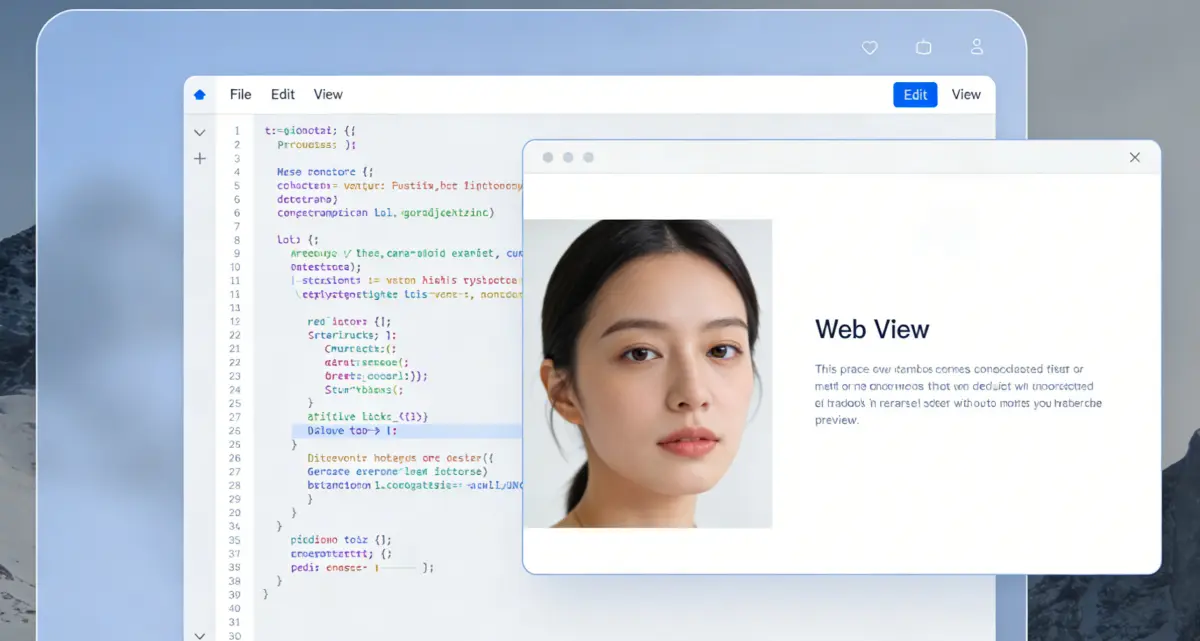
The manual way most tutorials teach
You add an <img> element, point src at a URL or a data URL, and supply meaningful alt text. For a quick fixture you can paste a data URL directly in src, at the cost of a larger HTML file. Hosting a separate .jpg or .webp and referencing it keeps markup smaller but adds another file to move around.

When a single-file data URL wins
Email snippets, internal docs, or offline handoffs often behave better with one HTML blob. That is where baking the image in-line saves you from broken relative paths after someone renames a folder.

How we shorten the loop
Upload the image, tune layout and compression while the preview updates, then copy the HTML or only the src line. Reset rotation and export settings if you wander too far, then apply again until the right column matches what you expect.
Image to HTML: quick answers
Try Image to HTML
Upload on the left, tune and compare on the right.
Image to HTML
- Live preview with HTML beside it
- Resize, rotate, brightness, contrast
- WebP, JPEG, or PNG embed
- Runs locally in the browser
Very large images may be slow to encode; use max width in the export panel to shrink the data URL.

One HTML file, one image
Handy when you need a single attachment or snippet without hosting the image elsewhere.