Pug to HTML for templates you need to eyeball before paste
Pug (and the older Jade syntax) trades angle brackets for indentation. That is pleasant until you are staring at twenty lines of nested tags and trying to remember whether `nav.main-nav` closed correctly three levels up. The standard fix is the `pug` CLI on a machine with Node installed. This page does the compile step in the tab you already have open. Paste a snippet, upload a `.pug` or `.jade` file, and read the HTML on the right as you edit. Compilation runs locally after the page loads—nothing is sent to a server for the transform. What sets this bench apart from a one-shot “paste and pray” converter is the preview: you can switch from raw markup to a rendered view of the compiled page and catch layout mistakes before the HTML lands in a CMS, an email tool, or a teammate’s repo.
Visual conversion beats reading indentation in your head
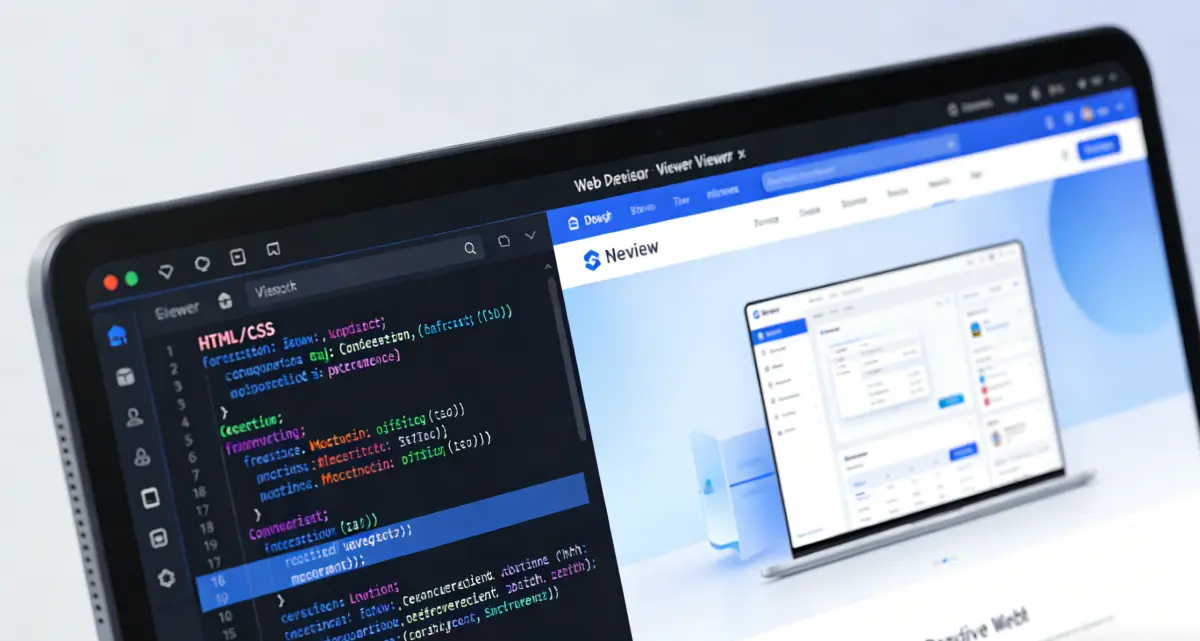
Most Pug-to-HTML utilities give you a text box and a download link. That works for a five-line fragment. It falls apart when you are checking navigation markup, a grid of cards, or a footer with mixed text and links. Here the source and output stay in view at the same time. Edit an indent, watch the HTML panel update, and flip to Preview when you care about spacing and hierarchy—not just whether a `</div>` exists somewhere. The status strip under the editor tells you whether the template parses. When it does not, you get the compiler message at the line that broke instead of a silent blank panel. That pairing—live HTML plus a sandboxed render—is the practical difference. You are not exporting markup blind and opening it in another app to see if the page looks right.
A few limits are worth stating up front so you do not lose time. This tool compiles the Pug you paste or import in the browser. It does not read a project folder, so `include`, `extends`, and external partials are out of scope. Mixins, conditionals, loops, and `style.` / `script.` blocks in the same file behave like a normal local compile. If you write multi-line JavaScript at the top of a template—arrays of menu items, for example—use a standalone `-` line and indent the JavaScript block beneath it. Pug treats only the first line after `-` as code; continuing an array on the next indent level without that pattern is a common syntax trap, and the error message can look cryptic until you know the rule.
Back to the converterRendered preview, not just source
The Preview tab loads your compiled HTML in a sandboxed iframe. Headings, lists, and links show up the way a browser will draw them—useful when indentation alone will not tell you if a section landed in the right place.
Side-by-side while you fix syntax
Keep Pug on the left and HTML on the right. Small edits—an attribute rename, a missing dot on a class—show up immediately so you can confirm structure before copy or download.
No install for a quick handoff
When you only need markup for a ticket or a one-off landing block, skipping `npm install pug` and a local script is the point. Import, convert, copy, move on.
Convert Pug to HTML and verify the page, not only the tags
Side-by-side editing, a rendered preview of the compiled HTML, raw markup for copy workflows, and export actions—without uploading your source to a server.

Visual conversion you can trust before paste
The layout is deliberately boring in a good way: Pug input on one side, output on the other. As you type, the HTML panel refreshes. Toggle Preview when you want to see the document as a page—navigation bars, card grids, footer columns—instead of inferring structure from indented shorthand. That visual pass catches the bugs that slip through when you only skim angle-bracket output: a missing wrapper, a class on the wrong element, text that should be inside a link but sits as a sibling instead. Raw HTML stays one click away when you need to inspect attributes, copy a fragment for a CMS block, or diff against an existing file. You are not locked into preview-only or source-only; the workflow matches how people actually review templates.
How to convert Pug to HTML on this page
Add your Pug source
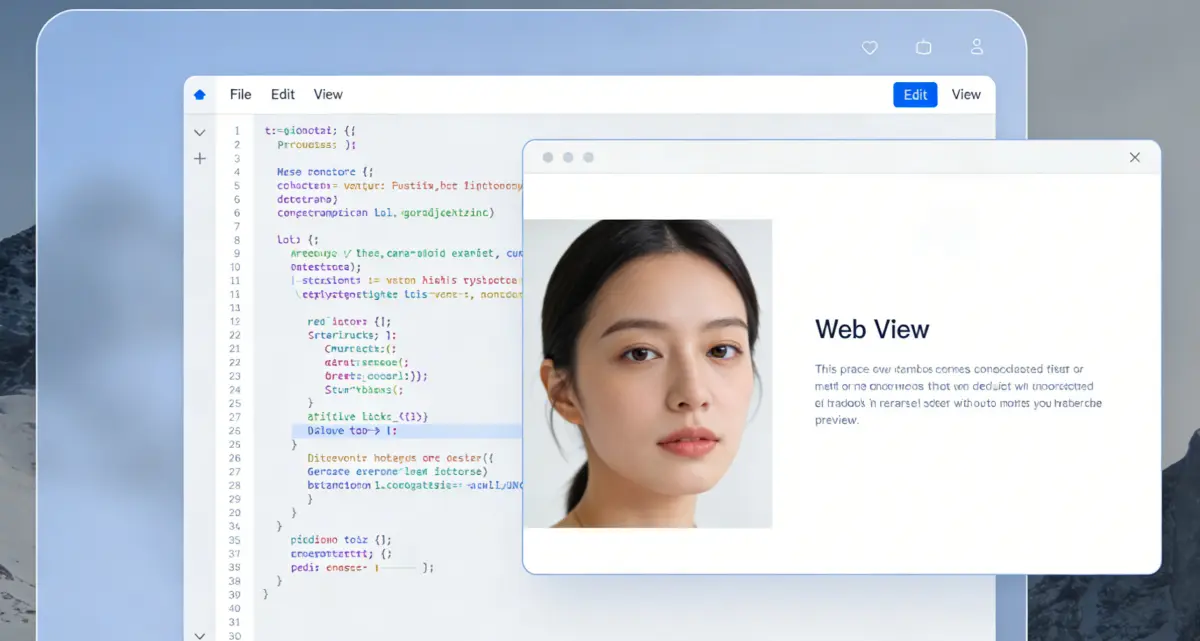
Paste into the left panel or use Upload for a `.pug` or `.jade` file. Indentation defines nesting—tabs and spaces must be consistent within the file. If you declare variables or arrays in unbuffered JavaScript (`-`), put multi-line code under a lone `-` line with the script indented below it.

Read HTML and open Preview
The right panel defaults to a rendered preview of the compiled page. Switch to HTML when you need the literal tags. If the input panel shows an error, fix that line first; preview and export stay blocked until the template parses.
Copy, download, or continue in the playground
Use Copy when the destination is another tool or a CMS HTML block. Download saves a `.html` file. Preview/visual edit HTML sends the current output to the homepage playground when you want visual edits beyond what Pug alone provides.
Pug to HTML questions people actually run into
Ready to turn Pug into HTML you have actually seen?
Side-by-side editing, rendered preview, copy, and download—free, no account.
Pug to HTML
- Visual conversion with Pug and HTML side by side
- Rendered preview of compiled HTML before you export
- Copy, download, or open in the playground
- Runs locally in the browser after load
Self-contained templates only—no `include` or `extends` from disk.